
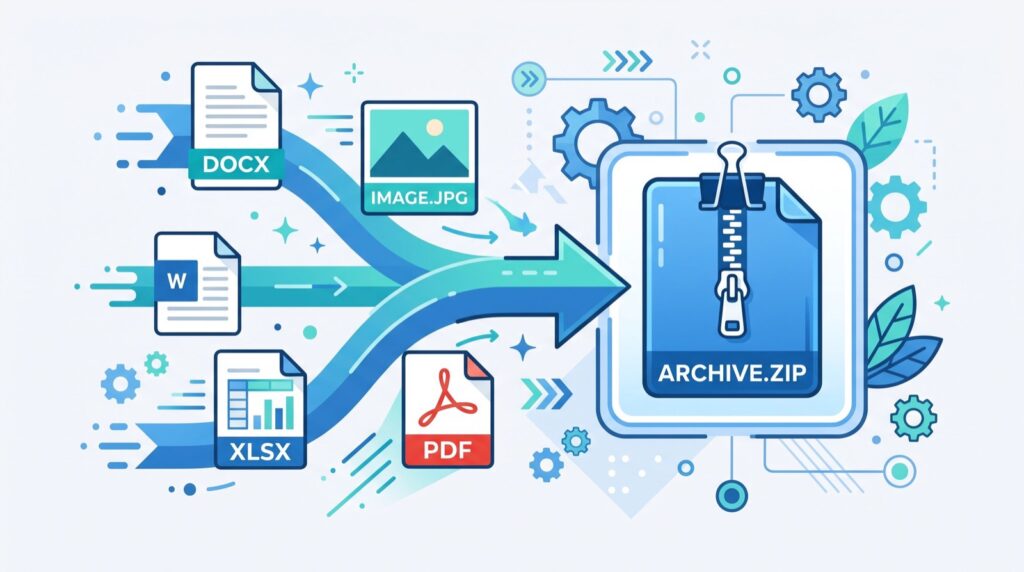
Sooner or later, every remote worker hits the archive wall. A developer sends you a project as a .tar.gz file, a hosting provider exports your website backup as a tarball, or a client’s Linux server hands over logs in a format your laptop shrugs at. Converting tar to ZIP is the quickest way through, because ZIP is the one archive format that opens natively on Windows, macOS, Android, and iOS without installing anything.
The old fix was hunting for desktop software with bundled toolbars, or memorizing terminal commands you use twice a year. In 2026, the sensible route runs through the browser: upload the tarball, receive a ZIP, get on with your day. This guide explains why the two formats coexist, when each one wins, and how to build a file handoff routine that never leaves a collaborator stuck.
Why Do Tar Files Confuse Windows Users?
Tar was born in the 1970s Unix world, where its job was bundling many files into one stream for tape storage. Compression came separately, which is why you see stacked extensions like .tar.gz or .tar.bz2: first the bundle, then the squeeze. Unix systems treat this as elegant composition. Windows historically treated it as a foreign object.
Modern Windows can technically extract tarballs through the command line, but Explorer’s double-click support remains inconsistent across the compressed variants, and most office workers reasonably refuse to open a terminal. Meanwhile ZIP compresses each file individually inside a single container, and every mainstream operating system has shipped a native extractor for it for two decades. The Library of Congress, which evaluates formats for long-term preservation, documents ZIP’s ubiquity and stability in its digital format sustainability registry. When your recipient is unknown, ZIP is the polite default.
Convert Tar to ZIP in the Browser: The 60-Second Method
Local conversion once required installing an archiver, and command-line conversion requires remembering flags in the right order. A browser utility removes both hurdles. With a converter like tar to ZIP, the whole exercise is drag, wait, download.
- Locate the .tar, .tar.gz, or .tgz file you received.
- Drop it onto the converter page in any modern browser.
- Wait for processing, typically a few seconds for everyday file sizes.
- Download the resulting ZIP and spot-check that the folder structure survived.
- Forward the ZIP to whoever was blocked, or extract it yourself with a double click.
Check these two things after any conversion
First, confirm the file count matches the original manifest if one was provided, since a truncated upload produces a valid-looking but incomplete archive. Second, watch for deeply nested paths: some ancient Windows tools still choke past 260 characters, so flatten extreme folder trees before re-sharing.
Tar, ZIP, or 7z: Which Archive Wins Where?
No single format is best at everything, which is why all three persist. Match the container to the destination and you eliminate an entire category of back-and-forth emails.
| Format | Opens natively on | Strongest at | Weakest at |
|---|---|---|---|
| tar.gz | Linux, macOS | Preserving Unix permissions, server backups | Non-technical recipients |
| ZIP | Everything | Universal sharing, per-file access | Compression ratio on huge text sets |
| 7z | Nothing by default | Maximum compression, strong encryption | Requires software on every end |
A useful mental model: tar.gz is for machines talking to machines, ZIP is for humans talking to humans, and 7z is for archivists squeezing terabytes.
Build a Handoff Routine Your Collaborators Can Trust
Freelancers and agencies live or die on smooth deliverable exchanges. A predictable packaging habit signals professionalism the same way clean invoicing does. Interestingly, the marketing world teaches the identical lesson about durability: dependable specialists consistently favor approaches that compound quietly over flashy shortcuts, and boring-but-universal file formats are exactly that kind of compounding choice.
Rules worth adopting for every outbound package:
- Ship ZIP unless the recipient explicitly works on Linux servers.
- Name archives with project, date, and version:
acme-site-2026-07-v2.zip. - Include a plain-text manifest listing contents and any passwords sent separately.
- Keep individual archives under the recipient’s mail or portal limits, splitting by folder when needed.
- Store your own master copy in the original format plus a converted ZIP, so either lineage can be restored.
Round Out Your Browser Toolkit for Media-Heavy Projects
Archives rarely travel alone. The same client project that produces a tarball of code usually also involves media assets: walkthrough recordings, testimonial footage, event clips that need to live in the deliverables folder alongside everything else. Keeping one bookmark folder of stateless browser utilities means the whole packaging job happens in one place.
For the media side, a utility to download video videos from your own channels lets you pull master copies back out of platforms for local archiving before you compress and hand them off. Back up only content you own or have licensed, keep the originals at full resolution, and ZIP the delivery copies. Your future self, restoring a project in 2028, will thank you for the discipline.
Frequently Asked Questions
Does converting tar to ZIP lose any data?
The files themselves transfer intact, byte for byte. What can change is metadata: Unix permission bits and symbolic links have no true ZIP equivalent, so developers restoring to a server should keep the original tarball for that purpose.
Is it safe to upload archives to an online converter?
For ordinary project files, reputable converters that process transiently are fine. For archives containing credentials, customer data, or anything under an NDA, convert locally instead, or encrypt the contents before they ever enter an archive.
Why is my ZIP bigger than the original tar.gz?
Gzip compresses the entire bundle as one stream, which often squeezes repetitive text harder than ZIP’s file-by-file approach. The tradeoff is access: ZIP lets you extract one file without unpacking everything, which is usually worth a few extra megabytes.
Can I convert in the other direction, from ZIP to tar?
Yes, and server administrators do it constantly when moving Windows-prepared files onto Linux machines. The same browser-based approach applies, just with the formats reversed.
Never Let a File Format Block a Deadline Again
Format friction is a solved problem; most people just have not updated their habits. Bookmark a tar to ZIP converter today, adopt the naming and manifest rules above, and the next unexpected tarball in your inbox becomes a sixty-second errand instead of an afternoon detour. Try the conversion on an old backup right now and see how little ceremony it takes.